Description
kfNgram is a free stand-alone Windows program for linguistic research which generates lists of n-grams in text and HTML files. Here n-gram is understood as a sequence of either n words, where n can be any positive integer, also known as lexical bundles, chains, wordgrams, and, in WordSmith, clusters, or else of n characters, also known as chargrams. When not further specified here, n-gram refers to wordgrams. kfNgram also produces and displays lists of "phrase-frames", i.e. groups of wordgrams identical but for a single word.
kfNgram features an intuitive graphic user interface and offers numerous options. Since the program continues to evolve, user suggestions and feedback to the developer are vigorously encouraged. Features and details of implementation are subject to change. While no registration is required to download and use kfNgram...
- redistribution of all or part of the program package (e.g. to colleagues or students) is prohibited without express prior permission of the developer
- users are encouraged to notify the developer if they wish to be informed of changes to the program
- Please read the license agreement before downloading.
Follow the instructions in kfNgram.cfg to create your own mappings for the character set you work in. To use the program with UTF8-encoded files, download kfNgram.cfgUTF8 if you don't already have it and save it in the same folder as kfNgram.exe. Rename the original configuration file to save it, then rename kfNgram.cfgUTF8 to kfNgram.cfg . Use Case Sensitive processing! This approach will not work with "classic" Unicode, which includes NULL characters (ASCII 0). Two further drawbacks:
- Sorting follows ANSI character codes, not the rules for the language. You’ll have to use a different program to sort alphabetically.
- Your text and n-grams will not appear in Unicode in kfNgram, but the output is UTF8-encoded and should display correctly in a UTF8-compatible editor.
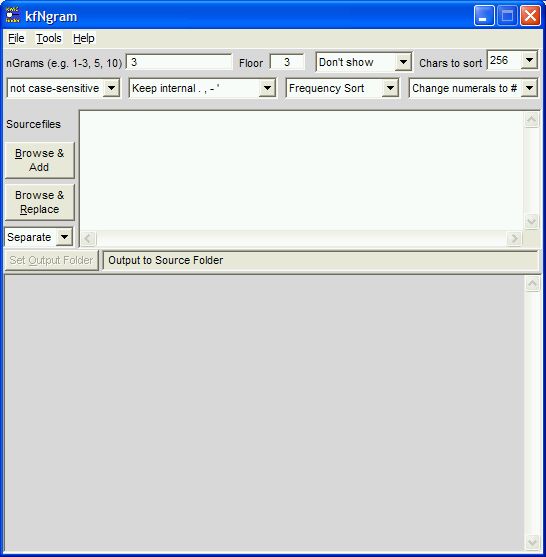
Making Wordgram Files
|
|
HTML (webpage) files may be used directly, but conversion is supported only for the Western European character set. The developer's program StripTags will also create useful text files from SGML and from some XML files; download and try it.
|
|
Submenus (note shortcuts keys)
- File Menu
-
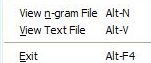
Both wordgram and chargram files can displayed with Alt-N. The Move Number Left / Right menus in the viewer permit aligning the numeric columns for proper display.
- Tools Menu
-
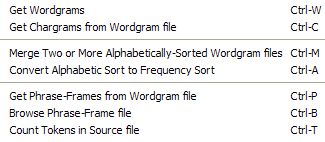
The various output types are produced as follows: - Wordgrams are generated directly from the files specified in the "Sourcefiles" field
- Chargrams are generated from previously-produced lists of 1-wordgrams
- Phrase-frames are generated from previously-produced lists of wordgrams with values of n of 2 or greater
- Options Menu
-
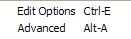
Edit Options allows redefinition of various aspects of the character sets (e.g. sort order, character remapping). Please refer to the documentation in the file itself. Advanced Options are currently limited to forcing reindexing each time the program is run. This ensures that changes in the processing options are reflected in subsequent runs of the program. (Default: use existing indices to save time processing large files.)
- Help Menu
-

Help / F1 displays this file About gives information about the program version, copyright and contacting the developer.
Options
Edit these values as desired
- nGrams specifies the values of n for which
wordgrams are to be generated:
- separate multiple values by commas, e.g. 1,3,6 means "generate 1-grams, 3-grams and 6-grams"
- show a range with a hyphen, e.g. 3-6 means "generate 3-grams, 4-grams, 5-grams and 6-grams"
- Floor specifies the minimum or threshold frequency a wordgram must have to be included in the list, i.e. a value of "1" means "include all wordgrams", while "5" means "include only wordgrams occurring 5 or more times."
Select these options via the drop-down boxes
- When Show n-grams is selected, each list of n-grams is displayed in a new window when done. Turn this option off when doing multiple large files, as the display windows can use up a lot of memory.
- Chars to Sort specifies the number of "significant" characters to sort on at at the beginning of each n-gram. Larger values can increase processing time significantly for larger files, so set it to the lowest acceptable value for your purposes unless the files are small. For example, if the maximum value of n that interests you is under 20, 256 characters should be sufficient, since it is unlikely that twenty consecutive words will total more than 256 characters.
- Case-Sensitive / Not case-sensitive seems obvious. Actually it selects whether to remap characters using the "csMapchars" or the "lcMapchars" string, which means about the same thing. These strings can be customized with Tools > Edit Options (shortcut Ctrl-E).
- Alphabetical sort / Frequency sort specifies whether to produce n-gram lists sorted either alphabetically or in descending order of frequency (and alphabetically within a given frequency). Customize the collation order by editing the "sortorder" entry with Edit options.
- Punctuation processing options
- Observe TreatAsToken "tokenizes" each instance of any character in the "TreatAsToken" entry in the configuration file (choose Edit options to modify), i.e. it is retained and separated by spaces from surrounding text. This preserves information about sentence and phrase boundaries and types.
- Punctuation as in KeepChars retains only those punctuation marks explicitly included in the "KeepChars", "csMapchars" and "lsMapchars" entries in the configuration file; all others are replaced by space.
- Replace . , - ' with space replaces all instances of these (and other)punctuation marks with space
- Keep internal . , - ' retains these marks
word-internally, so that forms like
KWiCFinder.com
537,291.098
e-mail
don't are treated as single tokens instead of being split up into separate tokens as in
KWiCFinder com
537 291 098
e mail
don t - Delete internal - keep . , ' is similar to the
previous option except that tokens like
on-line
e-mail
are mapped onto
online
email
- Retain numerals keeps numbers 0-9 intact, while Change
numerals to # does just that: each digit is replaced with #,
in contrast to Make all numbers #, which replaces one or more
consecutive digits with a single #.
Why this option? Certain phrases frequently collocate with numbers. By mapping all numbers to a single sign or series of signs, these set phrases emerge more clearly in the frequency list. Alternatively, by distinguishing individual numerals, one may detect that certain numbers are more salient than others in specific contexts. Both purposes are supported by kfNgram.
- When multiple source files are selected, Combine incorporates all of them into a single new file (you will be prompted for a name) and aggregates the data into a single report, while Separate produces a separate report for each source file.
- To filter out wordgrams containing user-defined stopwords, use kfNgramStopwords.
The options you choose are saved for future runs.
Merging files
Extracting n-grams from very large files can bring your system to its knees. For example, my ageing PC can index, sort, and produce n-grams of an 80 MB text file with almost 15 million tokens in a couple of minutes. By contrast, a file twice that size takes hours to process. Lesson: split longer files up into shorter chunks, then merge the results. The maximum useful source file size varies by hardware configuration; 100 MB is a useful maximum (200 MB if you have 1 GB or more of memory).
The wordgrams from separate runs can be merged into a single file with the Tools > Merge (shortcut Ctrl-M) menu command. Not only are the files combined, but the frequency data from separate runs are totaled up. When you click Merge you will be prompted first to select the files to be merged, then to provide a name for the output file for the result of the merge operation. Observe these key points:
- The various options (punctuation and other remapping, case-sensitivity, value of n) should be the same for all files to be merged.
- Merge works only with alphabetically sorted files
- You can re-sort the merged file by frequency with the Tools > Convert Alphabetic Sort to Frequency Sort (shortcut Ctrl-A) menu command, which works with any alphabetically sorted files.
- Merging many files can take a long time, especially for larger values of n. The application's titlebar displays the percent progress and the number of n-grams meeting the floor limit which have been found.
- On the other hand, merging requires relatively little memory, so other operations (generating new n-gram files, re-sorting by frequency etc.) can be carried out while a merge operation is in progress. Tips 1. It can be most efficient to divide your files into smaller batches, then merge the results. 2. You can launch kfNgram multiple times to carry out separate merge operations simultaneously.
- The merge operation uses the sort order specified in kfNgram.cfg
- Since data from various runs are combined, you should specify a
lower floor value for individual files than you intend for the merged
file, but avoid being over-inclusive for huge datasets.
The floor value in effect at the time of the merge operation governs which items are included in the merged wordgram list. For example, to ensure an accurate count of all types that occur three or more times in a large corpus split into 10 files, specify a floor of 1 for runs on the separate files, then raise the floor to 3 before merging the files. That way all occurrences will be considered when merging, but only types with a total frequency of three or greater appear in the merged list.
Phrase-Frames
To help the user discover additional linguistic patterns, kfNgram can produce lists of "phrase-frames", i.e. wordgrams which are identical except for a single word, as in the following example from the BNC written texts:
as * as the     4566    5
as well as the  2674
as far as the   874
as soon as the  652
as long as the  316
as much as the  50
The first line in each group shows the phrase-frame, with wildcard * standing for the word that differs in the variants. The second column in this line gives the total frequency of all variants, and the third column indicates the number of variants the phrase-frame has. Sets of phrase-frames and their variants are separated by a double set of carriage-return / line-feed pairs. While phrase-frame files are initially shown in the n-gram viewer window for quick verification, they are best studied with the phrase-frame browser (Tools menu / Ctrl-B). The phrase-frame feature was added at the suggestion of Prof. Michael Stubbs of the University of Trier and is based on a concept first developed by his graduate student Isabel Barth.
Chargrams
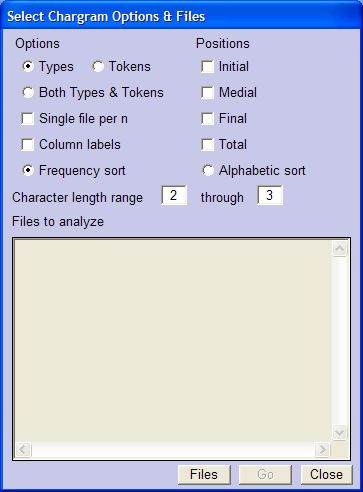
Lists of sequences of n characters are generated from 1-wordgram files. Select "Get Chargrams..." from the Tools menu (shortcut: Ctrl-C) to launch this dialog box, select files and options, then click "Go".
|
|
Running kfNgram from the Command Line beta, details subject to change
For efficient processing of large or numerous files, kfNgram can be run from the command line or from an MS-DOS batch file.
A batch file is a plain text file (i.e. the kind created by Notepad – specify a filename ending in .bat) containing a "script" of multiple commands to be executed sequentially. See example batch file below.Only the source filelist and the action (/N create n-grams, /M merge n-gram files, /P create phrase-frames from n-gram files, /Q resort n-gram files by frequency, /R refilter n-grams files to a higher threshold value)must be specified on the command line. Option settings are read from the configuration file kfNgram.cfg unless overridden with command line switches (/letter). Currently not all options can be overridden, so you may have to run kfNgram first or else edit kfNgram.cfg in order to select the options you need.
Switches are not case sensitive. The space between switch and parameter is optional. Conventions values in [ ] are optional; | separates mutually-exclusive alternative actions (do not enter the [ ] or the |). While still under development there are inconsistencies in the way wildcards are processed; please use the optional /V switch to verify which files will be matched before running a command.
Usage C:\kfNgram>kfNgram filelist /N | /M | /P | /Q | /R# [optional switches]
- filelist
- Specify multiple filenames with wildcards * ?, or else separate them with +. Include the path (full or relative) if different from the directory in which the program is located. Output is saved in the program directory.
- /N [#]
- Create n-grams. Optional [#] specifies the range of n (default: kfNgram.cfg).
-
- /A or/F
- Sort results Alphabetically or by Frequency (default: kfNgram.cfg)
- /D
- Delete index files when done to save space on drive
- /I
- case-insensitive sort (default: kfNgram.cfg)
- /S
- Case-Sensitive sort (default: kfNgram.cfg)
- /C [combinedfilename]
- Combine soucefiles into [combinedfilename] (default name: combined.txt)
- /M [#]
- Merge alphabetically-sorted n-gram files.
Optional [#] specifies the range of n (other values
skipped even if matched by a wildcard). Wildcard specification or exact
list of filenames to be merged. -ngrams-Alpha.txt
is assumed if not specified.
Examples
To merge alphabetically-sorted 1-3-gram files in the directory in which kfNgram.exe is found with others whose names start with news into files news01merged.txt, news02merged.txt, news03merged.txtkfNgram news* /m1 /o newsmergedTo merge all alphabetically-sorted n-gram files in directory C:\ngrams> with others having the same value of n into files with names like newmerged-01.txtkfNgram ngrams\* /m /o newmerged -
- /O outputfilename
- Merged Output is saved to this file (-##.txt is added automatically, where ## stands for the value of n; default: merged-##.txt). Please use this option – otherwise the default could overwrite the merged results of various sourcefiles.
- /P [#]
- Create Phrase-frames from alphabetically-sorted n-gram files. Optional [#] specifies the range of n (other values will be skipped even if matched by a wildcard; n>1).Wildcard specification or exact list of filenames to be merged. -ngrams-Alpha.txt is assumed if not specified.
- /Q
- Resort alphabetically-sorted n-gram files by freQuency. Produces new filenames ending in -Freq.txt
- /R#
- Refilter n-gram files (alpha or freq sort) to higher floor (minimum cut-off) value #. Produces new files with filenames preceded by floor##; does not affect the sourcefiles.
- Options that apply to the above three actions:
- /L#
- Lowest frequency to include in the results ("floor"; default: kfNgram.cfg)
- /V [#]
- View settings and filenames only; do not process files. Optional number of seconds to wait after displaying this information before closing window (default: 30). Do this first to verify that settings and wildcards work as intended.
- /W [#]
- Wait # seconds after processing command line before closing window and proceeding (default: 20). If the switch is present and no number is specified, the window closes immediately when processing is finished.
- Sample batch file
-
REM Batch files have one command per line
REM precede comment lines (notes to yourself) with REM
REM create 1-6-grams from files named like MyTexts01.txt
REM files will be merged in following step, so specify floor 1 and alphabetical sort
kfngram MyTexts??.txt /N1-6 /A /L1
REM merge n-gram files; retain only n-grams that occur at least 2x
kfngram MyTexts* /M /O MergedMyTexts /L2
REM now sort merged files by frequency
kfngram MergedMyTexts* /Q
Click here for detailed help with making and using batch files.
Download and Installation [This is version 1.3.1 - 10 July 2007]
Please read the license agreement before downloading.
Two installation options are available:
either
- Download kfNgramSetup.exe (295 kB) and run it to install the program automatically
- If you do not have "administrative privileges" on your computer specify installation to a folder other than C:\Program Files\kfNgram\, e.g. C:\kfNgram\
or
- Download kfNgram.zip. (229 kB) Unzip all the files to an appropriate folder, e.g. the one in which your text files are located. You may wish to create a shortcut to the program for your desktop. For experienced users this may be the easiest way to upgrade. Caution: if you have created any custom character remapping strings in kfNgram.cfg, do not overwrite this file!
kfNgram home page online (latest version of this help file)
FAQ (Fletcher-Anticipated Questions) and History
- When will you support importing word processor documents?
- When someone asks me to. I have sample code which could be adapted – I just need a good reason to move it higher up in my "to-do" list.
Bug Fixes and Added Features
29 August 2012
- New release of kfNgramStopwords.exe fixes a bug:
frequencies were accidentally stripped from filtered files. It also no longer overwrites original files;
instead nostopwords_ is prefixed to the names of the filtered files. If
no file named stopwords or stopwords.txt is found,
a file dialog appears to select the stopword file. Finally, the names of the n-gram files to be filtered
can be selectted in a file dialog if they have not been communicated by drag-and-drop or specified on the command
line.
Download updated program (not in distribution yet)
How to use kfNgramStopwords
10 July 2007 - 1.3.1
- kfNgram Capability of running directly from the command line added
- Bug fix: merged file is no longer deleted after merging exactly two files
9 January 2007 - 1.2.14
- kfNgram "Issue" with sorting phrase-frames by frequency resolved.
13 October 2006 - 1.2.13
- kfNgram Merging and phrase-frame generation now far more efficient and scalable to very large files. Operations on lists of hundreds of millions of items that previously took hours or days can now be completed in well under an hour.
- kfNgramBrowsePhraseFrames loading and saving re-sorted large files made faster and more robust; warning with possibility of cancellation before loading very large files.
- kfNgramStopwords bug fixed so stopword file either with or without .txt extension is recognized
12 April 2006 - 1.2.12
- Numerals can now be mapped to either a single # per string of numerals or else one # per numeral.
- Improved stripping and remapping of HTML (now UTF-8 tolerant; bug fix: strips HTML from multiple combined files – previously worked only with a single file)
17-24 February 2005 - 1.2.02 & 1.2.03
- Chargram support and Phrase-Frame browser added. Minor bug fixes (column re-sorting) to the latter in release 1.2.03.
- Minor enhancements and bug fixes (sporadic count inaccuracies, problems with filename filters...) implemented.
22 April 2004
- Companion utility kfNgramStopwords.exe released. It permits filtering out wordgrams containing any word-form in a stopword list. Click here to download. Ultimately this functionality will be incorporated into kfNgram.
- To use it, create or edit a plain-text list of stopwords named stopwords or stopwords.txt, one word per line. Blank lines, leading and following blanks, and comments following | are ignored. (Tip to skip specific stopwords, comment them out by preceding them with a |; they then can remain in the file for later use.) Save this stopwords file in the same directory as kfNgramStopwords.exe. As a point of departure you can download this sample stopwords file based on the 200 most frequent types in the BNC as normalized on my "Phrases in English" site. Here is another stopword list.
- To use kfNgramStopwords, either...
- select a file or group of files in Windows Explorer, then drag and drop it onto kfNgramStopwords' icon, or else...
- launch it from the DOS command line with a filename or list
of filenames separated by spaces. If any filename or path
contains spaces, the entire path and filename must be enclosed in "
". Wildcards * and ? are supported. Sample
command lines:
List of filenames separated by spaces: C:\ngramdata>kfNgramStopwords mydatafile1.txt mydatafile2.txt
Single character wildcard achieves the same effect: C:\ngramdata>kfNgramStopwords mydatafile?.txt
Data files in a different directory; * matches 0 or more characters: C:\ngramdata>kfNgramStopwords d:\otherdir\data*.txt
Data file or directory names containing spaces are enclosed in " ": C:\ngramdata>kfNgramStopwords "subdir with spaces\*.txt"
- Warning kfNgramStopwords overwrites your original wordgram files. Please back up your originals or work with copies.
17 November 2002 - 1.10.01
- "Phrase-Frame" support added.
- File-naming conventions standardized.
17 October 2002 - 1.00.09
- Merge progress display added and merge operation made more robust
- Numerous changes to make working with multiple files easier and more intuitive
- Partially implemented option to map all numbers onto a single # removed from dropdown list (it was added only for testing and inadvertently made it into the released version; as currently implemented it truncates the data)
- Select target folder feature added, but still disabled as it has not been tested fully
8 October 2002 - 1.00.08
- File viewers now support custom font face and size (edited via "Edit Options" on the Tool menu).
- File viewers now can display larger files more rapidly (exceeding the file size limits caused sporadic crashes in Windows 9x / ME).
- Unnecessary code and constants removed to reduce application size from 125 to 97 kB.
- Some minor bugs and cosmetic flaws eliminated.
3 October 2002 - 1.00.07 (thanks to user feedback)
- Menus standardized
- n-Gram file viewer added
1 October 2002 - 1.00.06 (thanks to user feedback)
- Exit menu item added
- Number of source files selected is displayed
- Redundant source file names removed automatically
- Text file viewer added
30 September 2002 - 1.00.05
- Alphabetic sort now assigns frequencies to the correct item
- Frequency sort no longer crashes for very high frequency values
- Merge and re-sort by frequency features added
Under the Hood
kfNgram incorporates routines programmed by William H. Fletcher for KWiCFinder primarily in PowerBasic, with some processing-intensive code in assembly language. (PBWin 10.0 is an extremely efficient language combining C-like performance with the programming simplicity of structured Basic. Version 8.0 is available for $50.) It implements aspects of the "suffix array" algorithm for indexing n-grams described by Chunyu Kit and Yorick Wilks and later by Mikio Yamamoto and Kenneth W. Church. After remapping the characters, then tokenizing and indexing the source string, kfNgram pre-sorts the first 12 characters of each token entry in the entire suffix array. It then sorts smaller ranges of the suffix array to the "resolution" specified by the user. The range size can be varied to optimize performance (usually irrelevant for files under 1 MB). It offers a quantum leap in performance over its predecessor, which ground to a virtual halt on files of 20-30 MB of text.